
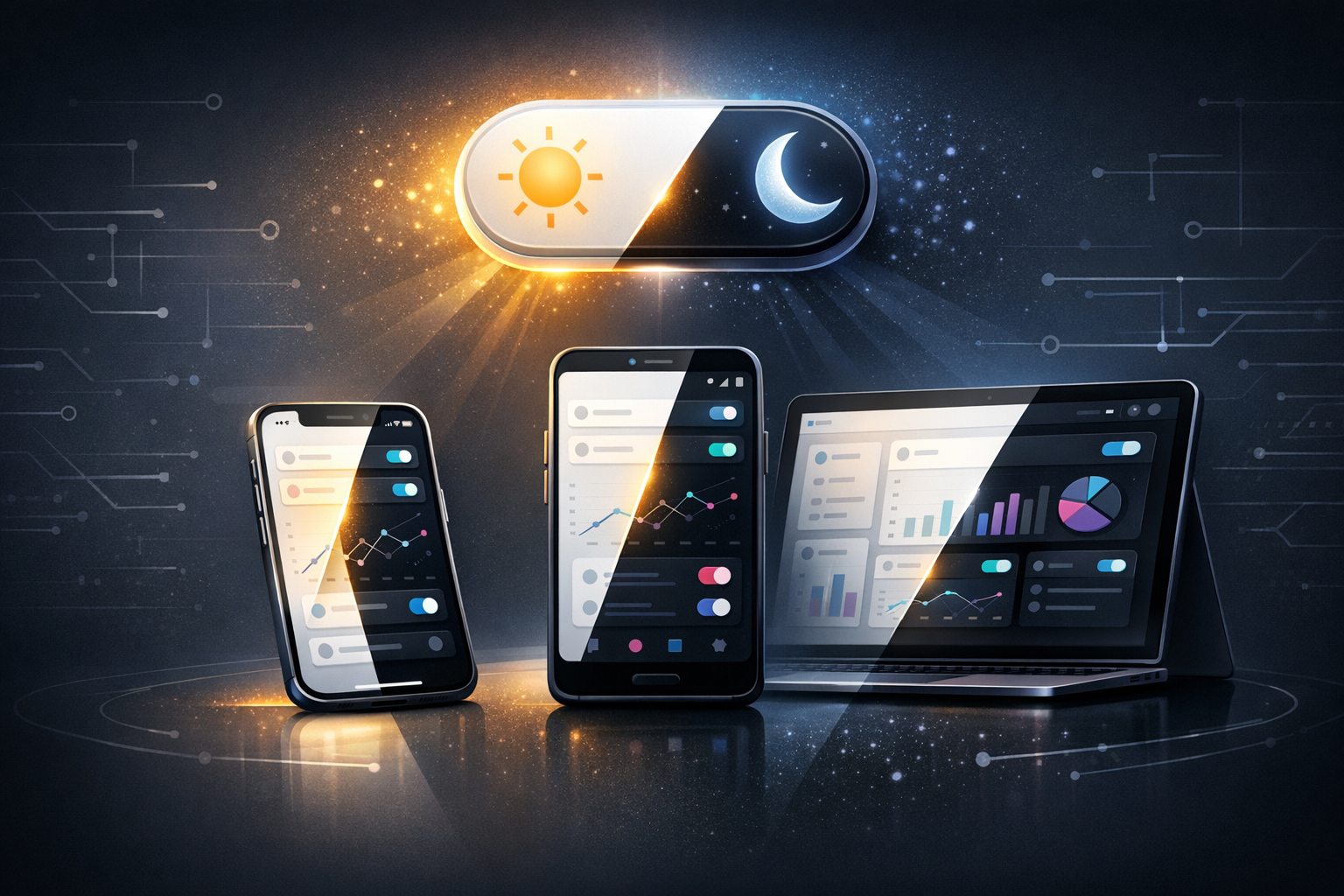
Dark Mode Implementation Guide: Boost UX on iOS, Android & Web Apps
I can usually tell when an app team “did dark mode” at 4:55pm on a Friday.
You open the app in bed, brightness turned way down, and—bam—someone’s chosen a pure black background with pure white text. It’s technically dark. It’s also somehow… loud. Like a torch in your face.
Dark mode implementation isn’t hard in the “invent new maths” way. It’s hard in the “a hundred tiny decisions” way. Colours, contrast, shadows, icons, photos, charts, empty states—every screen has a little opinion about how it wants to look in the dark.
If you’re building an app for your business (or trying to improve one that already exists), dark mode is one of those features that feels optional until it suddenly isn’t. Users expect it. Platforms encourage it. And once you ship it properly, it quietly makes your product feel more mature.
What dark mode actually is (and what it isn’t)
Apple’s own framing is simple: Dark Mode is a systemwide appearance that uses a dark colour palette for comfortable viewing in low-light environments. That’s the spirit of it. Comfort. Not “make everything black because it looks cool”.
Dark mode isn’t a skin you slap on top. It’s a second set of design decisions that needs to hold up across your whole app—settings screens, onboarding, error states, receipts, paywalls, the weird admin screen nobody remembers until a customer emails you at midnight.
And no, it’s not just inverting colours. Inversion breaks meaning. Reds become odd. Brand colours go muddy. Photos look like they’re under a streetlamp. You want intention, not a filter.
So the goal is consistency, comfort, and readability—without turning your app into a gloomy cave.
Start with the thing everyone skips: your colour system
If your app’s colours are “#FFFFFF, #F7F7F7, #333333, and vibes”… dark mode will hurt. The easiest way to make dark mode implementation sane is to stop thinking in hex codes and start thinking in roles.
Roles are boring names like background, surface, text-primary, text-secondary, border, accent, danger. Boring is good. Boring scales.
Once you have roles, you can map them to light and dark palettes. Suddenly you’re not updating 80 screens—you’re updating a handful of tokens and letting the UI follow.
A practical starter set usually looks like this:
- Background (the page)
- Surface (cards, sheets, panels)
- Elevated surface (modals, popovers)
- Primary text and secondary text
- Hairline/border
- Accent (brand colour)
- Destructive (error, delete)
- Success/warning (if you use them)
Here’s the bit people don’t love hearing: you’ll probably need slightly different brand colour values in dark mode. Not always, but often. Some accents that pop on white look like bruises on charcoal. Adjusting them isn’t “betraying the brand”. It’s making it usable.
iOS dark mode: respect the system, then customise carefully
On iOS, the best dark mode apps feel like they belong on iPhone. That’s not an accident. Apple gives you a lot for free if you use the system tools the way they’re meant to be used.
If you’re building native iOS, use Dynamic Type and semantic colours (think system background, secondary background, label colours). When the user switches appearance at the OS level, your app should follow without drama.
The main traps I see:
- Hard-coded colours hiding in custom components (buttons, charts, “special” cards).
- Images with baked-in backgrounds that look fine in light mode and terrible in dark.
- Shadows that don’t translate—dark shadows on dark surfaces just look like smudges.
Depth is a big one. In light mode you can separate surfaces with shadows. In dark mode you often separate with subtle lighter surfaces and careful borders. You still need perceptible differences in depth across multiple screens, otherwise everything becomes one flat slab.
Also—don’t use pure black everywhere. Apple’s own dark mode tends to use very dark greys because true black can create harsh contrast and make text feel like it’s floating. If you’re building a content-heavy app, that difference matters.
Android dark theme: Force Dark vs native (and why “quick” can get expensive)
On Android, dark theme is available from Android 10 (API 29) and up. You’ve basically got two paths: Force Dark or a native implementation.
Force Dark is tempting. It’s the “Android, please handle it” switch. And sometimes it’s fine—especially for simple apps or internal tools where you don’t want to spend weeks polishing. But it can also do weird things to brand colours, images, and custom views. It’s a bit like letting autocorrect write your apology text.
Native implementation takes longer but behaves better. You define your day/night themes properly, use Material components, and set colours via resources so the system can switch cleanly. If you care about your app’s look (and if it represents your business, you probably do), native is usually the grown-up option.
I’ve watched teams ship Force Dark in a sprint, celebrate, and then spend the next month chasing down legibility bugs. Grey text on slightly different grey backgrounds. Icons disappearing. Buttons that look disabled when they’re not. It’s never one big failure—it’s death by a thousand papercuts.
A decent compromise is: start with native theming for the core UI (navigation, screens, typography, components), and be pragmatic about the long tail. Not every obscure admin screen needs museum-level perfection on day one.
Web apps: the class approach is boring… and that’s why it works
Web dark mode implementation is where things get… creative. You can use prefers-color-scheme and let the OS preference drive it. You can offer a toggle. You can store the choice. You can do all three and still somehow break it in Safari.
CSS-Tricks has a solid guide covering different approaches, and the one I keep coming back to is the simple one: apply a class on the root element (<html> or <body>) and define a complete set of colour styles for that mode.
Something like .theme-dark and .theme-light. Not glamorous. Very effective.
Why it works:
- You control every colour role explicitly.
- You can combine it with CSS variables for a clean token system.
- You can still respect
prefers-color-schemeas the default, then override with a user choice.
If you’re running a business app on the web, that control matters. Marketing pages are one thing. Logged-in dashboards with charts, tables, and forms are another. Dark mode on the web falls apart fast when you’ve got third-party components that assume a white background.
One practical tip: handle the “flash” on load. If your site loads in light mode for a split second before switching to dark, it feels cheap. Inline a tiny script in the head that sets the theme class before render based on stored preference (or system preference). It’s a small detail that makes the whole thing feel intentional.
Contrast, readability, and the stuff users don’t know to complain about
Most dark mode complaints aren’t phrased as “contrast ratios are insufficient”. They come out as “this screen feels weird” or “I can’t read this bit” or “my eyes get tired”. And then you’re hunting through screens like a detective.
A few rules of thumb I’ve learnt the hard way:
- Avoid pure white text on very dark backgrounds for long reading. Use slightly softened text colours.
- Secondary text needs to stay readable, not just “technically visible”. If users have to squint, it’s wrong.
- Disabled states in dark mode are tricky—don’t make them so faint they look like rendering bugs.
- Focus states (especially on web) must remain obvious. Dark mode shouldn’t kill accessibility.
And depth—again. In dark mode, you often create hierarchy by using slightly different surface colours, not heavier shadows. A modal should feel like it sits above the page. A card should feel like it’s on a layer. If everything is the same near-black, your UI loses its shape.
If you want a quick sanity check, take three screens: a list view, a detail view, and a settings page. Put them side by side in dark mode. If they all look like the same grey rectangle with text sprinkled on top, you need more structure.
Real-world gotchas: images, charts, and “brand moments”
Dark mode is easy until you meet reality: photos, illustrations, charts, and anything with colour meaning.
Images with white backgrounds are the classic offender. Product shots, partner logos, user avatars with transparent edges—suddenly they’re glowing. If you can, use transparent PNG/SVG assets designed for both themes, or add subtle containers so they don’t look pasted on.
Icons should be treated like text. If you’ve got icons in random greys, they’ll vanish in dark mode. Tie them to your colour roles: primary icon, secondary icon, disabled icon.
Charts are where dark mode goes to die. Gridlines that were subtle become aggressive. Colours that were distinct become indistinguishable. If your app is data-heavy, plan time for chart theming specifically—line colours, axis labels, tooltips, hover states. And test on an actual phone, not just your nice monitor in a bright office.
Brand moments—like a big hero screen, onboarding, or a paywall—often need bespoke tweaks. If your brand colour is loud, you may need to reduce saturation in dark mode. If your background is a gradient, you may need a different gradient entirely. Annoying, yes. But those are the screens that sell your product, so they deserve attention.
How to ship dark mode without derailing your roadmap
If you’re worried dark mode implementation will eat your entire quarter, you’re not being dramatic. It can. But you can keep it contained if you’re sensible about scope.
I like to approach it in layers:
- Foundation: define colour roles/tokens and hook them into your UI components.
- Core flows: the 5–10 screens most users touch every week.
- Long tail: the rarely used screens, edge cases, and legacy bits.
Do the foundation properly and everything else becomes easier. Skip it and every screen becomes a one-off argument.
Also—test with the system setting, not just an in-app toggle. On iOS and Android, people expect your app to follow the device appearance. On the web, people expect you to respect their preference too, even if you offer a manual override.
And please, for the love of sleep, keep a checklist of places dark mode breaks: empty states, error banners, skeleton loaders, toast messages, embedded web views, PDF previews, email templates, maps. The boring stuff. The stuff that always ships broken if nobody owns it.
Dark mode is a trust feature
Users don’t usually leave a five-star review because your app supports dark mode. They just… relax. They use it at night. They stop thinking about the interface and get on with what they came to do.
That’s why it’s worth doing well. Not because it’s trendy, but because it signals care. It tells people you thought about the edges, not just the demo.
And if you’re building an app for your business, that kind of quiet competence is hard to fake. It shows up in the little decisions—softened whites, readable secondary text, surfaces that have shape, charts that don’t scream.
When dark mode feels right, nobody notices. They just keep scrolling… and their eyes don’t ache. That’s the whole point.